How to Manage Creator Campaigns in a Spreadsheet Without Burning Out Your Team
Ding Yu
In the previous post, I explained why sellers who run creator affiliate programs inevitably end up with a huge, complicated spreadsheet.
A lot of people asked the same question after reading it: how do you actually fix this?
This post walks through an automation workflow you can build yourself.
The goal is not to replace Google Sheets, Excel, or Lark, and it is not to make you buy a brand-new management system from day one. Your team can keep using the spreadsheets they already know while software automates the work people used to do by hand.
The big idea
This approach is built on two principles:
- Keep your existing tools and processes wherever possible, and use software to replace manual work.
- Automation must follow a fixed process. AI should not be in charge of running the workflow.
The first principle matters because automation is hard to roll out when it requires the entire team to change how they work. If everyone uses Google Sheets today, they can keep using Google Sheets after the workflow is automated. The difference is that software now handles as much of the copying, checking, and updating as possible.
The second principle means the workflow must be deterministic. You define what every step does in advance, and the program follows those instructions exactly. AI agents such as Codex and Claude Code can help us write the program, but they should not decide what to do next on the fly every time it runs.
The goal
Suppose your current process looks like this:
1. An Instagram creator places an order on your Shopify store
2. You record the order and their Instagram handle in Google Sheets
3. You send them a sample
4. Every day, you check whether the sample has arrived and whether they have posted a promotional video containing the required content, such as “@youraccount”
5. If they have posted it, you add the video URL to the spreadsheet; otherwise, you send them a reminder email
The real process is more complicated for many sellers, but these are the essential steps.
Here is what we want the automated version to look like:
1. An Instagram creator places an order on your Shopify store
2. You tag the order in Shopify and record the creator’s Instagram handle
3. You send them a sample
4. The system checks every day whether the sample has arrived and, after delivery, whether the creator has posted a promotional video
5. If the video has been posted, the system adds its URL to the spreadsheet; otherwise, it sends the creator a follow-up email
In other words, the data entry, status checks, and email follow-ups in the original process can all be automated.
How to build it
1. Set up Google Sheets for automation
Your Google Sheet should include at least these columns:
- Shopify order number
- Instagram creator handle
- Status: Awaiting shipment, Awaiting delivery, Awaiting post, Needs manual review, Complete
- Instagram video URL
- Reminder email sent at
2. Sync Shopify orders to Google Sheets
The goal of this step is to automate data entry from Shopify into Google Sheets so that creator orders appear in the spreadsheet automatically.
The program needs to know which orders came from Instagram creators and which creator belongs to each order. To give it that information, add two markers while processing the order:
-
Add
Instagramto the Tags section of the Shopify order.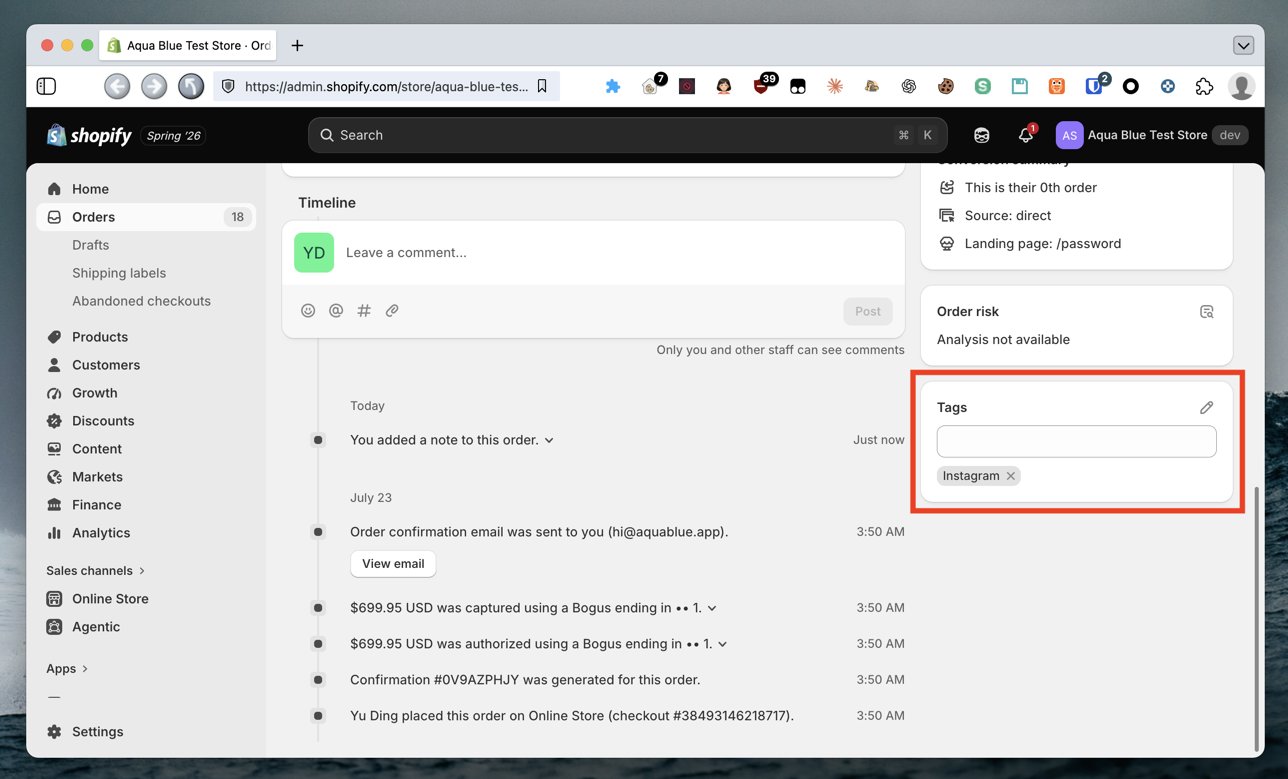
Add Instagram to the Tags section of the Shopify order.
-
Add a line to Notes in the format
Instagram=@handle, using the creator’s Instagram handle. For example:Instagram=@felixding
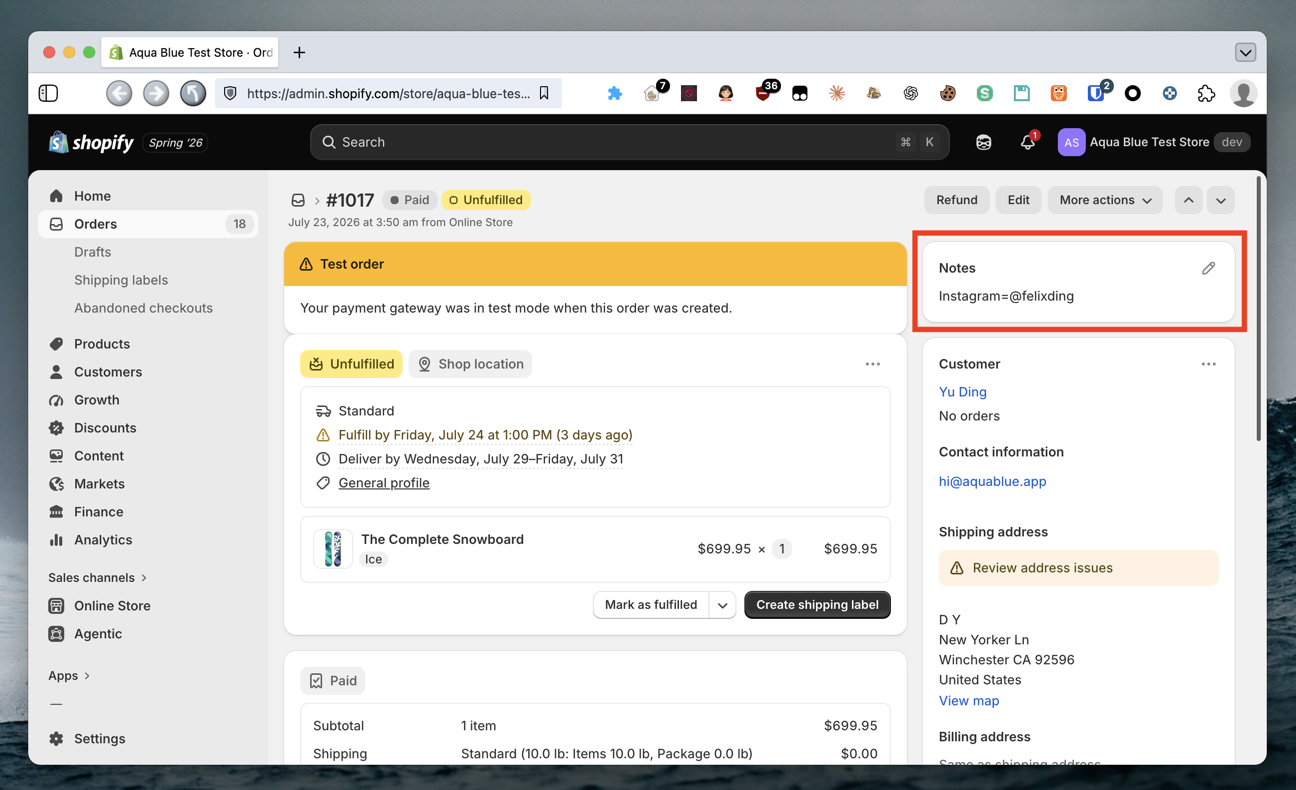
Enter the creator’s Instagram handle in the Notes section of the Shopify order.
The Instagram=@ part must always use exactly this format. Notes can contain other text, but the program will only read the line that begins with Instagram=@.
Next, request API access for Shopify and Google Sheets. Follow the Shopify developer documentation and Google Developers documentation, create an app and a project respectively, and obtain the API credentials.
Then ask an AI coding agent such as Codex or Claude Code to write the program:
Build me a program that syncs Shopify orders to Google Sheets every time it runs.

Only sync Shopify orders tagged “Instagram”.

Sync the following columns to Google Sheets:

- Shopify order number: Enter the Shopify order number
- Instagram creator handle: Search the order Notes for a line that begins with “Instagram=@”, then use the text after `@` as the Instagram creator handle. For example, if the line is `Instagram=@felixding`, the handle is `felixding`. If the line is missing or the handle is not in the correct format, do not guess. Set the order’s status in Google Sheets to “Needs manual review”, then skip that order
- Status:
  - If the order has not shipped, enter “Awaiting shipment”
  - If the order has shipped but has not been delivered, enter “Awaiting delivery”. Treat the order as delivered only when the Shopify tracking information shows that every package has arrived
  - If the order has shipped and every package has arrived, enter “Awaiting post”

When syncing, use “Shopify order number” to determine whether the order already exists in Google Sheets. If it exists and its status is “Needs manual review” or “Complete”, skip it without making any changes.

After each run, tell me how many orders were added and how many were updated.

I already have the Shopify and Google Sheets API credentials. Tell me where to store them.
Debug the program until it works, then move on to the next step.
3. Automate the checks and follow-ups
This is the main event: connecting Instagram, Google Sheets, Shopify, and Gmail into one workflow.
First, get your Instagram API credentials from Meta for Developers. Then create an app password from your Google Account.
Now ask the AI agent to modify the program you just built:
Add a new feature. Every time the program runs:

1. Sync Shopify orders to Google Sheets using the existing logic, without changing it
2. Read every row in Google Sheets where “Status” is “Awaiting post” and “Reminder email sent at” is blank
3. For each matching row, use the “Instagram creator handle” to retrieve the videos that creator posted on Instagram during the past 2 days
4. Check whether any video caption contains “@youraccount”:
   - If you find one, add the Instagram video URL to the “Instagram video URL” column in Google Sheets, then change the status to “Complete”
   - If you do not find one, use the Shopify order number to find the creator’s email address in Shopify and send a reminder email using the template below. Then enter the current date and time in “Reminder email sent at”
5. Tell me how many orders were updated and explain how each one was updated.

I already have the Instagram API credentials, my Gmail username, and my Gmail app password. Tell me where to store them.

Reminder email template:

Subject: (write your email subject here)
Body: (write your email body here)
Once that is working, you have a Shopify + Instagram -> Google Sheets -> Email workflow.
API access and credentials
Getting API access and credentials from each platform is not the focus of this post, so I have only covered it briefly. But I should warn you: it is nowhere near as easy as it sounds.
Even for personal use, something as basic as reading and writing a Google Sheet requires you to create a Service Account, share the Google Sheet with the Service Account’s email address, grant it edit access, and configure a JSON key file.
Be prepared to spend some time following each platform’s official documentation carefully.
Other platforms
You can use the same approach to build workflows for other platforms, including:
- TikTok Shop
- Lark
- YouTube
- Threads
The key is working out how to connect the different platforms. That is probably the hardest part.
An off-the-shelf option
If you are willing to invest the time, you can absolutely build this yourself with spreadsheets, APIs, and AI coding tools.
Writing the program is only the beginning, though. You will also need to maintain platform authorizations, handle errors and retries, and update the program whenever an API or spreadsheet structure changes.
If you do not want to build and maintain all of this yourself, you can also use Aqua Blue, which I am currently building. It is not designed to replace your existing spreadsheets. It connects your platforms and spreadsheets into a workflow that follows your rules exactly, then hands uncertain cases to a person for review.