Creator Affiliate Workflow v1.1: Review Before You Sync, Catch Every Order, and Add TikTok Shop
Ding Yu
The first post in this series looked at why creator programs inevitably grow into monster spreadsheets. The second showed how to automate the work around those spreadsheets without replacing them.
This time, we are going to make that workflow safer to run every day: review changes before they happen, make sure pagination does not hide orders, and bring TikTok Shop into the picture even when API access is out of reach.
Review before you sync
Suppose a script pulls orders from Shopify into an internal tracker, or checks Instagram for the videos a creator promised to post. Even when the script does all the work, most operators still open Google Sheets afterward to make sure nothing looks wrong.
There is a better place for that review. Instead of checking the sheet after it has already changed, show the proposed changes first and write them only after a person approves them.
Ask your AI coding tool to update the program like this:
Before syncing Shopify orders to Google Sheets, show me a review table in the app.

- Label each order as a new row or an update
- For a new row, show the values that will be added, including the order number, status, and Instagram creator handle
- For an update, highlight every value that changed
- Keep the same column structure as Google Sheets, then add one final dropdown column where I can choose what happens to each row. Preselect “Add” or “Update” as appropriate, with “Skip—do nothing” as the other option

After I submit the form, process only the rows I approved. Do not touch rows marked “Skip—do nothing”.

Use the same review step after checking Instagram and before updating Google Sheets:

- Tell me whether a qualifying creator video was found
- If one was found, show the matching order and video URL
- Present the result in the same table format and let me approve or skip each update
The result can look something like this:
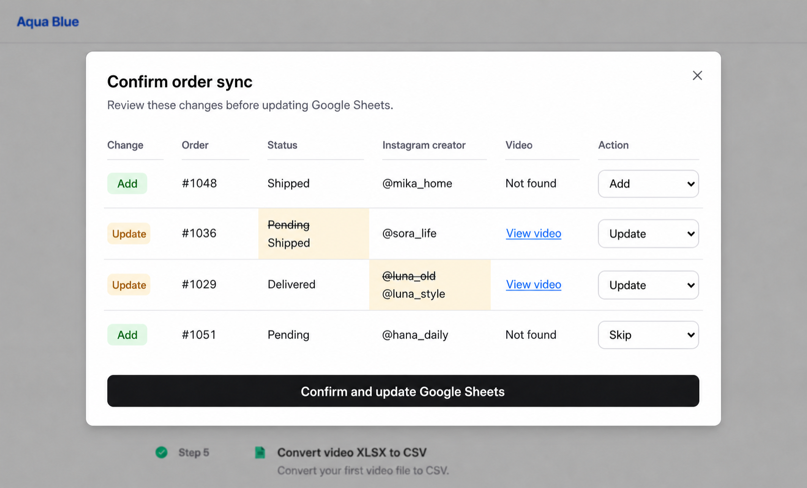
The workflow collects proposed additions and updates in one place, highlights changed values, and lets the operator approve or skip each row.
Now the spreadsheet is the final record, not the place where you discover mistakes after the fact.
Make sure every order is included
There is another easy-to-miss failure mode in the original workflow: the program may read only some Shopify orders or Instagram videos and still appear to finish successfully.
Most APIs return records in pages. A response might contain the first 20 results even though hundreds match your request. Unless the program follows the next-page cursor until there are no pages left, its answer is incomplete.
Add this requirement to the program:
Whenever you retrieve Shopify orders or Instagram videos, handle pagination automatically. Continue until you have collected every item that matches the conditions, rather than processing only the API's default first page.
This is not specific to orders. Creator lists, videos, comments, and many other API resources use the same pattern, so pagination needs to be part of every relevant read operation.
Bring TikTok Shop into the workflow
TikTok Shop API permissions are extremely difficult to obtain. For many sellers, a direct API integration is therefore not a realistic starting point. The Seller Center does, however, let you export a useful amount of data, and those exports can stand in for an API in a file-based workflow.
In a typical setup, you export two files:
- Orders: go to Seller Center → Orders → Manage Orders, select All, set the filter to Order tag: free sample from seller, and export the orders as CSV
- Videos: go to Affiliate Center → Performance → Videos and export the video data as CSV
The order export contains sample orders, creators, products, and order status. The video export contains creators, products, video URLs, and performance data. Unfortunately, the two files do not share a dependable ID that tells you which video belongs to which sample order. In practice, you have to match them by creator username and product.
There is one more complication: Affiliate Center → Performance → Videos is not always complete. A creator may have published the promised shoppable video, but TikTok Shop may fail to associate it with the collaboration. When that happens, the video never appears in this export.
You can fill some of that gap by going to Analytics → Videos, choosing a date range, and exporting the video data there. This export will often include more of the videos that actually generated sales.
The tradeoff is weaker matching. The Analytics export may give you little more than a creator username and product details, which is not enough to map every video to exactly one sample order. The workflow can propose the most likely match, but a person still needs to confirm it. 🤦
In short, TikTok Shop data is fragmented across several exports, and their formats are not consistent. Any matching workflow needs a human review step before it updates the source of truth.
If you would rather not build and maintain all of this yourself, US TikTok Shop sellers with at least $12,500 in monthly GMV can use Aqua Blue at no cost. Get in touch to learn more.